Tutorial
How to Automatically Track Bank Deposits Using Grok Bot and Tiller
This tutorial demonstrates the workflow on the synthetic starter toolkit only. Every screenshot uses demo data.
This workflow watches inflows on a Tiller-shaped Transactions tab. It does not log in to your bank, and it does not mark deposits as cleared in Tiller. It reports what appeared, what was expected, and what looks off.
The word âautomaticallyâ here means: after Tiller fills new rows, a deterministic check can run on a schedule you control. It does not mean a live service is already running on your account.
Download the starter workbook or the full toolkit zip to follow along.
The rules (deterministic)
- New deposits. Inflows whose Transaction ID is not in last-check state. Date Added is stored with the ID so a later rerun can be explained.
- Expected deposits. A config file or Expected Deposits sheet lists a description fragment, optional account, expected amount plus tolerance, a due date, and a window in days. A match inside the window is âmatched.â After the due date but still inside the window is âlate.â After the window closes, it is âmissing.â A due date in the future is not flagged.
- Stale feed. If the newest Accounts Last Update is older than the stale threshold (default 36 hours before the as-of date), late and missing flags are suppressed. The feed may simply not have arrived. Tiller Direct Fills sheets update after the institution refreshes; this rule uses Last Update rather than guessing Tillerâs clock.
- Duplicates. Two or more inflows, same account, same amount, same normalized description, different IDs, within N days (default 5). Empty descriptions are ignored.
- Refunds and reversals. Refunds are description-based. A reversal is an inflow and an outflow of opposite amounts on the same account, close in time, with corroborating descriptions.
- Pending vs posted. Used when a Status column exists. Tillerâs default export often has no Status; in that case the monitor records âunknownâ and does not pretend rows are posted.
The expected-deposits schedule (demo)
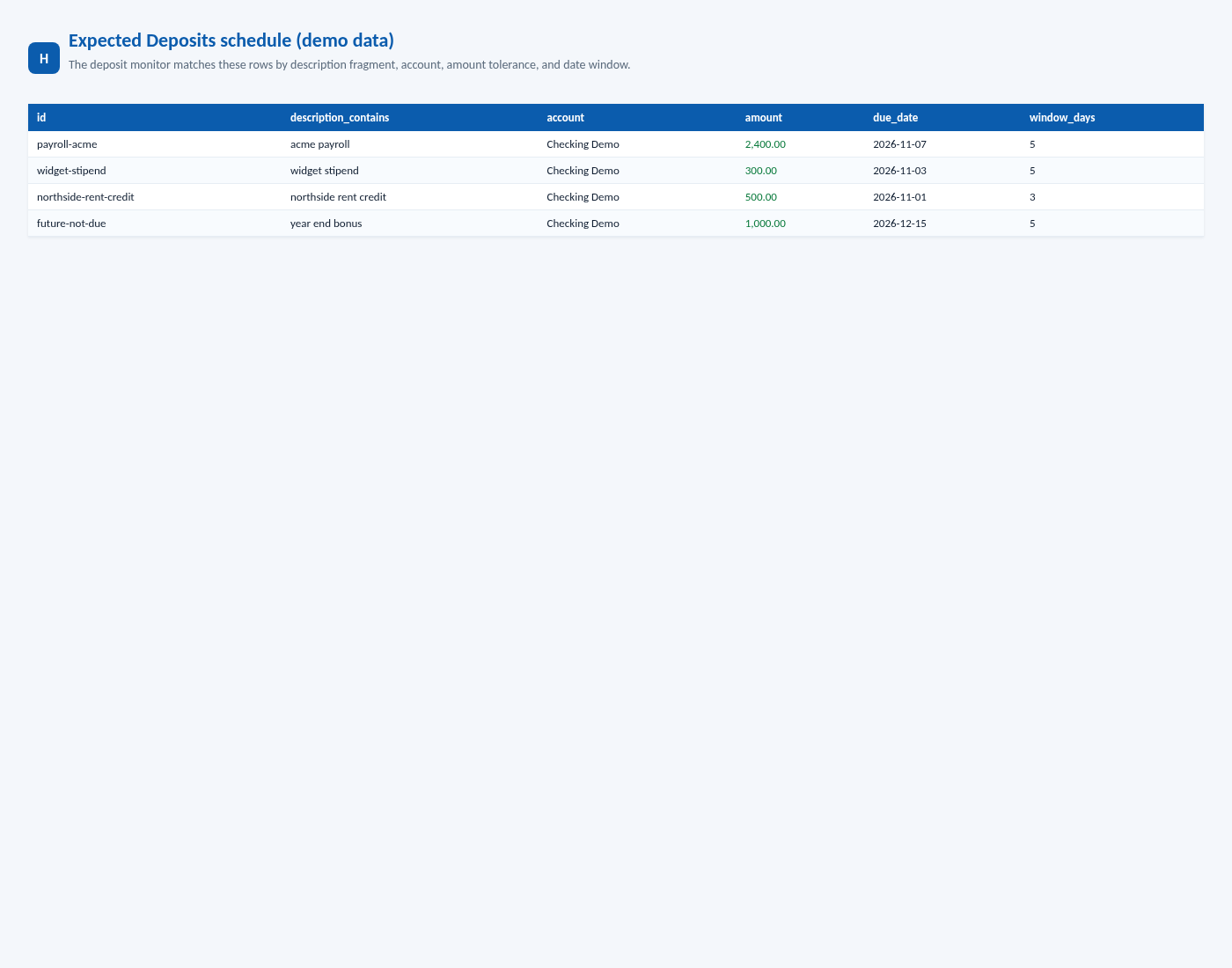
- Acme Payroll, $2,400.00, due 11/07/2026, window 5 days â should match
D-PAY-1. - Widget Stipend, $300.00, due 11/03/2026, window 5 days â arrives 11/06, so it is late.
- Northside Rent Credit, $500.00, due 11/01/2026, window 3 days â never arrives, so it is missing.
- Year End Bonus, due 12/15/2026 â not flagged on 11/10.
Prompt tested on this data
Run on November 10, 2026 against the starter toolkit, as-of date 2026-11-10, prior state = D-OLD only:
Using the Transactions and Accounts tabs in this Tiller-shaped sheet, list new deposits since the last check (Transaction IDs already in last-check state should be ignored). Match the Expected Deposits schedule with a $0.01 amount tolerance and each rowâs date window. Flag late and missing expected deposits, but suppress those flags if the feed is stale. Flag duplicate inflows (same account, amount, and description within 5 days, different IDs). Flag refunds and reversals. Separate pending from posted when a Status column exists. Do not write to the spreadsheet. Do not include account numbers in the summary.
Tested result (demo):
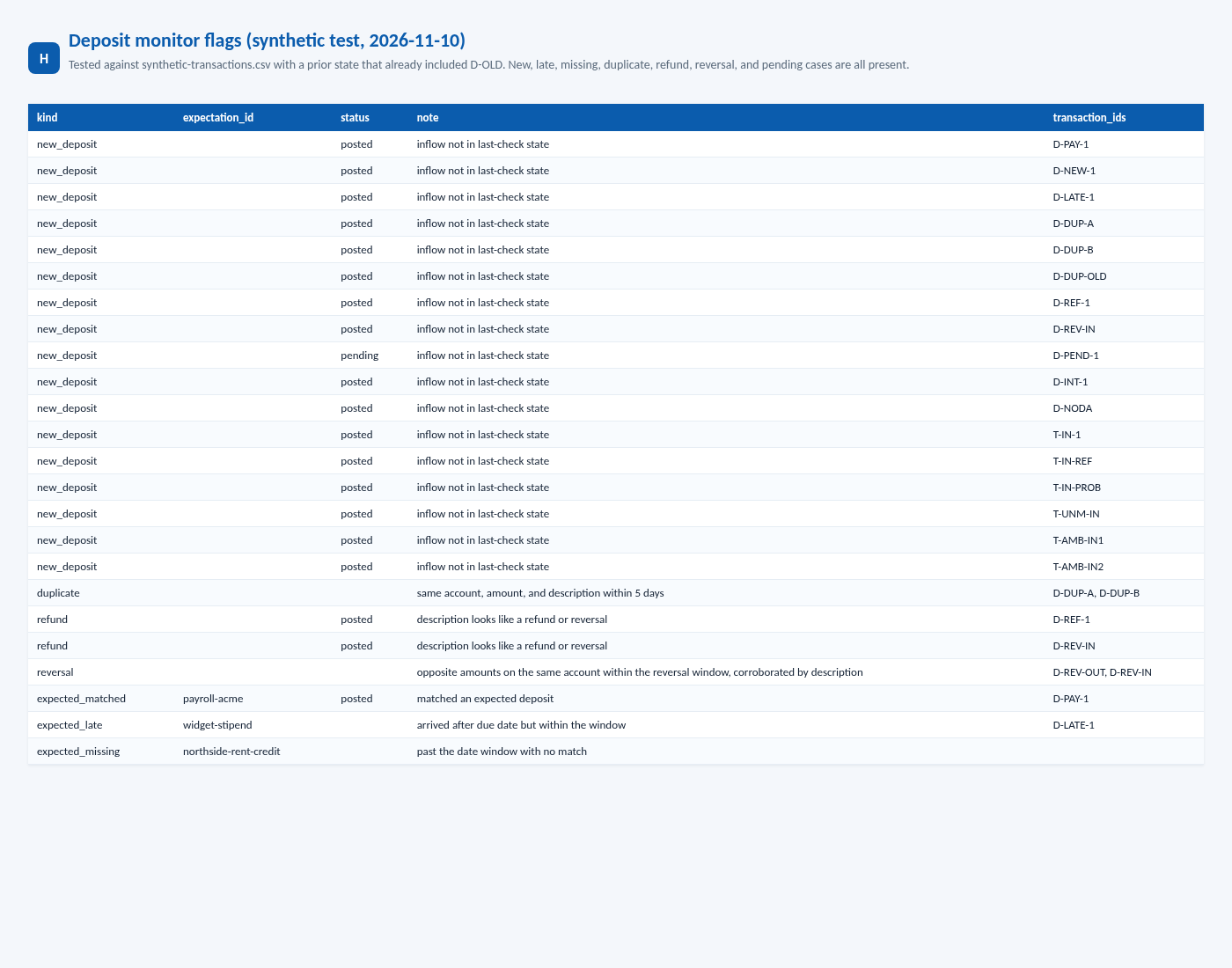
- 25 transactions, 18 inflows, 17 new deposits
- expected: 1 matched, 1 late, 1 missing, 1 not yet due
- 1 duplicate cluster (two âStripe Payoutâ rows of $120.00; an older third payout is outside the 5-day window)
- refund and reversal flags present
- 1 pending (
Pending ACH from Patreon), 24 posted - feed not stale (Accounts Last Update = 11/10/2026)
A second synthetic fixture with Accounts Last Update = 11/05/2026 was also run. Late and missing flags were suppressed, which is the correct stale-feed behavior. The full 12-test suite (deposits + transfers) was re-run on November 10, 2026 at 11:13 AM America/Denver (MST) and passed 12 / 0 on synthetic fixtures only.
Using this with your own Tiller spreadsheet
- Keep the demo toolkit separate from any production workbook.
- If you later export or pull Transactions and Accounts, do it read-only.
- Fill an expected-deposits config for your payroll and recurring credits. Do not copy the demo merchants into a public article, and do not publish live amounts or descriptions.
- Run once to save last-check state (that run is a baseline).
- Run again after Tiller has had a chance to fill. Compare only new IDs.
- Keep the report private. Recurring monitoring is not âonâ until the schedule, the stale threshold, and your expected-deposits list have been reviewed.
Common mistakes
- Treating the first full export as a long list of missing deposits. The first run is a baseline: almost every Transaction ID will look new until last-check state is saved.
- Flagging late payroll when Last Update is yesterday and the institution has not refreshed.
- Calling every same-amount inflow a duplicate. The description has to match, and empty descriptions do not count.
Next: How to Reconcile Transfers Between Bank Accounts With AI.