Tutorial
How to Automate Your Tiller Transactions With Grok Bot and Google Sheets
Practical, tested workflows with Grok Bot, Tiller, and Google Sheets. Every screenshot uses synthetic demo data.
This tutorial does not replace Tiller, does not connect your bank for you, and does not move money. You keep your Tiller spreadsheet. The bot reads a copy or an export and reports what changed.
What you will have when you finish
- A Tiller-shaped starter workbook you can inspect in Sheets or Excel.
- Sample AutoCat rules for recurring merchants.
- Three prompts that were actually run against the synthetic Transactions tab on November 10, 2026 (America/Denver).
- A clear line between âreviewed a demo fileâ and âmonitoring your live sheet.â
What this is not
HowItCodes does not build another bank feed. Tiller already fills Transactions after your institutions refresh (Tiller Help, âHow often is new data added to my Tiller-powered spreadsheet,â Direct Fills). The bot should not write categories, delete rows, or call a write-capable Tiller connector against a production workbook unless you have separately decided that is safe.
The demo Transactions tab
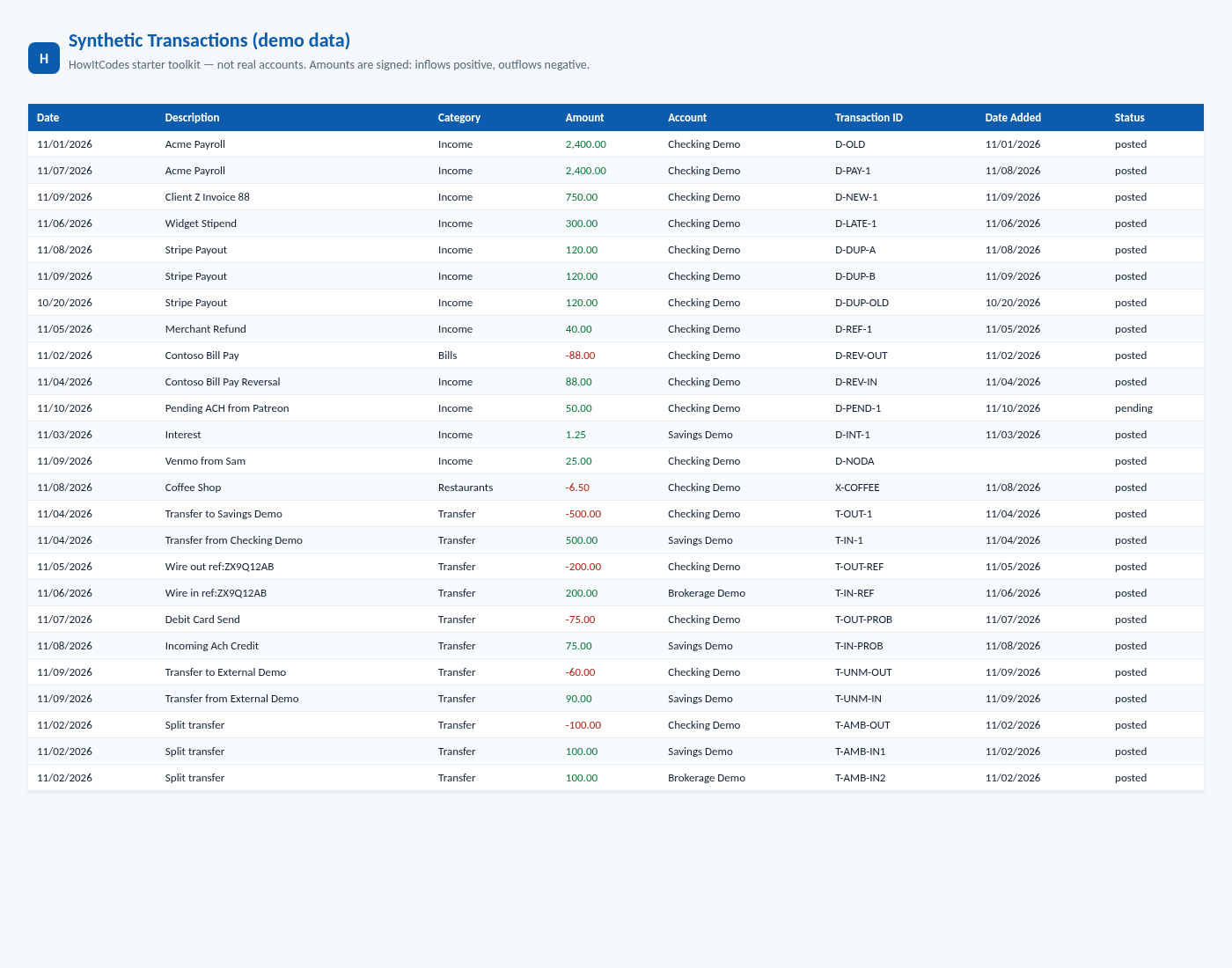
The starter toolkit ships a 25-row Transactions sheet with signed amounts (inflows positive, outflows negative), Transaction IDs, Date Added, and a Status column so pending items can be demonstrated.
Set up the workbook
- Download the HowItCodes Tiller starter toolkit: the Excel workbook or the full zip (workbook, CSVs, setup notes, troubleshooting, and tested prompts).
- Open it locally, or later copy it into your own Google Drive.
- Keep this file separate from any production Tiller spreadsheet. Do not paste live transactions into a file you plan to publish.
The Transactions headers follow Tillerâs usual layout: Date, Description, Category, Amount, Account, Account #, Institution, Month, Week, Transaction ID, Account ID, Full Description, Date Added, plus a Status column for the demo. Amount is signed. Transaction ID is the stable dedup key. Date is the posting date, which can lag authorization. Prefer Account + Account ID over matching on the last four digits of Account # alone.
Teach AutoCat the obvious merchants first
Tillerâs AutoCat rules already handle recurring descriptions. The toolkit includes a short sample:
- Description contains
Acme Payrollâ CategoryIncome - Description contains
Coffee Shopâ CategoryRestaurants - Description contains
Transfer toorTransfer fromâ CategoryTransfer
Use AutoCat for deterministic merchant mapping. Use the bot for review: what is new since last time, what looks duplicated, what still needs a category. That split keeps a typo in a prompt from rewriting hundreds of live rows.
Prompt tested on the synthetic sheet
The following prompt was run against synthetic-transactions.csv and synthetic-accounts.csv on November 10, 2026, with last-check state containing only the historical payroll row D-OLD:
Using the Transactions and Accounts tabs in this Tiller-shaped sheet, list new deposits since the last check (Transaction IDs already in last-check state should be ignored). Match the Expected Deposits schedule with a $0.01 amount tolerance and each rowâs date window. Flag late and missing expected deposits, but suppress those flags if the feed is stale. Flag duplicate inflows (same account, amount, and description within 5 days, different IDs). Flag refunds and reversals. Separate pending from posted when a Status column exists. Do not write to the spreadsheet.
Result of that run (demo counts only): 25 transactions, 18 inflows, 17 new deposits (the older D-OLD payroll was already in state), 1 expected payroll matched, 1 stipend late, 1 rent credit missing, 1 Stripe payout duplicate cluster, refund and reversal flags, 1 pending ACH, feed not stale. The same cases are covered by the automated test suite (12 passed / 0 failed). That suite was re-run on November 10, 2026 at 11:13 AM America/Denver (MST) and again passed 12 / 0 on the synthetic fixtures only.
How ânew since last checkâ actually works
The monitor keys last-check state on Transaction ID and remembers each IDâs Date and Date Added. A row is ânewâ when its ID is not in that file. The first run against any full export is a baseline, not a crisis: almost everything will look new until state is saved. Recurring monitoring is only âactiveâ after that baseline exists, the rules have been tested, and you have confirmed the schedule.
Using this with your own Tiller spreadsheet
Keep your production Tiller workbook separate from the demo toolkit. If you later export or pull Transactions and Accounts, do it read-only, keep the report private, and never paste live merchants, amounts, or account numbers into a public page, a staging site, or a tutorial screenshot. HowItCodes tutorials, screenshots, and test results use synthetic demo data only.
Next: How to Automatically Track Bank Deposits Using Grok Bot and Tiller or How to Reconcile Transfers Between Bank Accounts With AI.